Understanding the Daily briefing
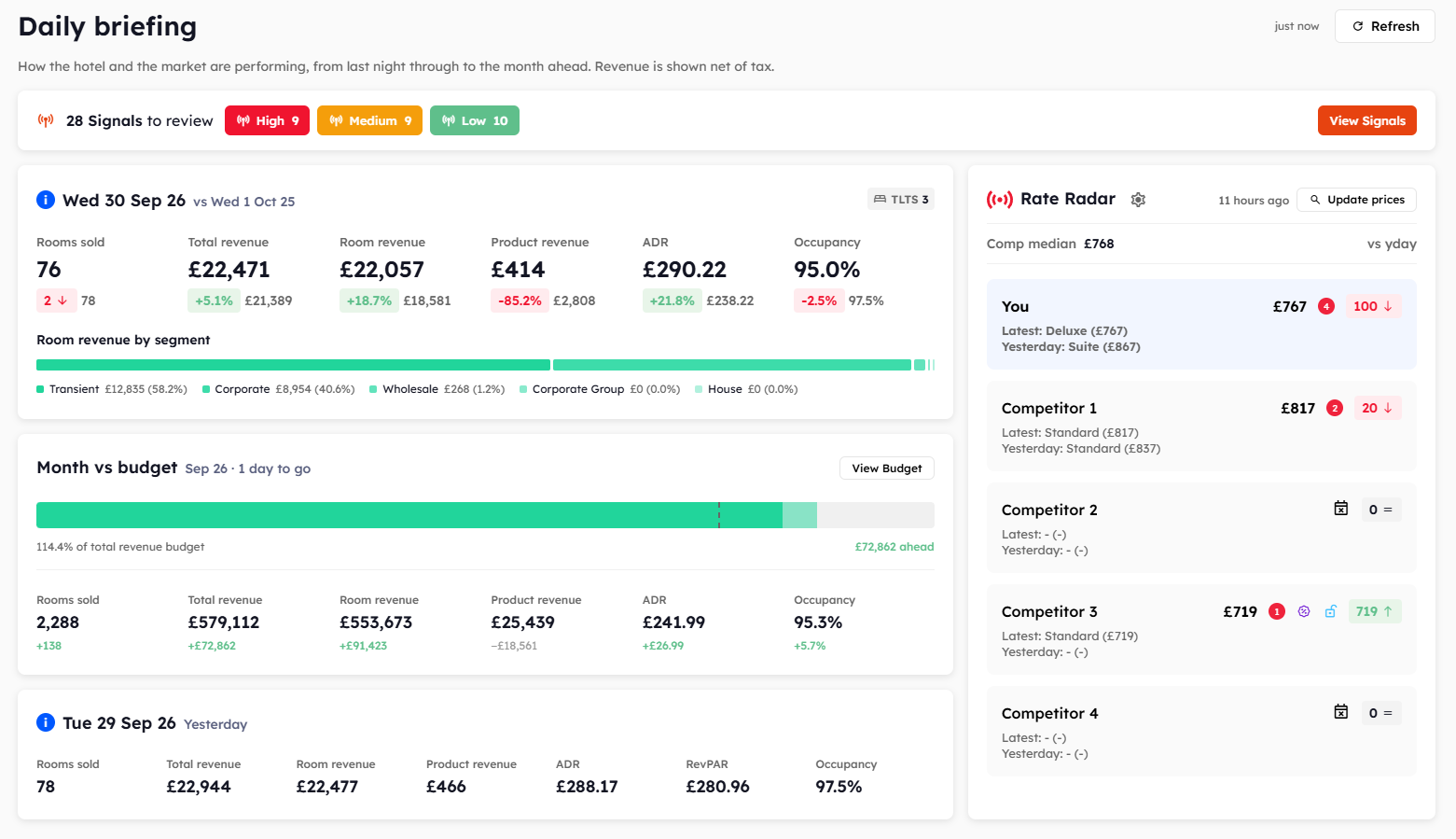
The Daily briefing is the first page you see when you open Beacon. It shows how your property and your competitors are doing, from yesterday through to the end of the month, on one page.
You'll see the Daily briefing if your property uses both Explorer and Rate Radar. Click the Beacon logo at any time to come back to it. All revenue on this page is shown net, with VAT taken off.
Signals banner
The banner at the top shows how many Signals are waiting for you, split into High, Medium, and Low. Click View Signals to open the Signals Hub. See What are Signals?.
Today
The first card is headed with today's date and compares it with the same day of the week last year. It shows Rooms sold, Total revenue, Room revenue, Product revenue, ADR (average daily rate), and Occupancy, each with the change against the same day last year.
The TLTS badge shows the total rooms you have left to sell tonight.
Under the figures, Room revenue by segment shows how today's room revenue is split between your segments.
Month vs budget
This card shows how the current month is tracking against your budget, including bookings already made for the days still to come. It tells you how many days are left, what percentage of your total revenue budget you've reached, and how far ahead or behind you are. The bar on the card shows your revenue for the month, split into room revenue and product revenue.
The six figures underneath each show the difference against budget. Click View Budget to open the Budget page. See Tracking performance against budget.
If you haven't uploaded a budget for the year, the card shows No budget uploaded with a link to add one. See Uploading your budget.
Yesterday
The third card shows yesterday's figures. It has the same figures as the first card, plus RevPAR (revenue per available room).
On the first and third cards, click the info icon next to the date to open the daily overview for that day. See Checking a single date with the daily overview.
Rate Radar
The Rate Radar panel shows today's prices for you and your competitors, with the Comp median and yesterday's price for each property. Click Update prices to fetch the latest competitor prices. See Understanding the Overview dashboard in the Rate Radar guides.
Refreshing the page
The top right of the page shows how long ago the figures were loaded. Click Refresh to reload them. Refresh doesn't fetch new competitor prices, so use Update prices for that.
Was this helpful?
Still need help? Share an idea