What are Signals?
A Signal shows when something worth knowing about is happening in your comp set.
Rather than expecting you to stare at the dashboard waiting for a competitor to move, Rate Radar watches every price update and raises a Signal when it spots something material. For example, a competitor selling out, a price drop across the market, your own rate drifting out of line, and so on.
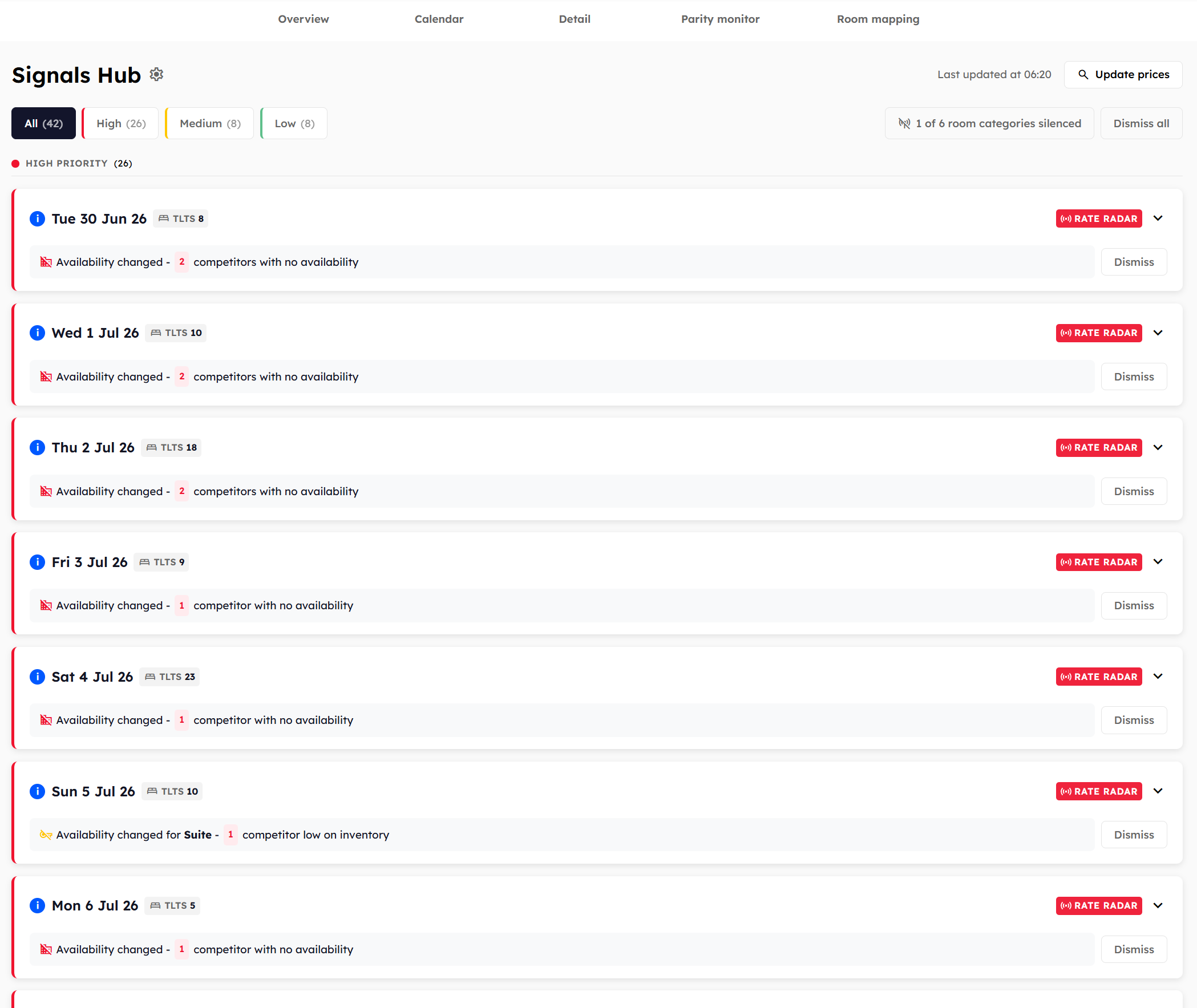
What Signals detect
Signals fall into two groups:
Hotel-level Signals look at your comp set as a whole. For example, two or more competitors are close to sold out on the same date, or the market is collectively drifting up by a few percent.
Room-type Signals look at each room category individually. For example, two competitors are dropping their Deluxe prices while their Standard rooms are sold out.
There are eleven signal types in total. See Signal types reference for the full list.
Where Signals appear
Signals surface in several places, so you don't have to remember to open the Hub:
Signals Hub — the dedicated page (
Signals Hubin the main nav). The full list of current Signals with filters, bulk actions, and details. See Using the Signals Hub.Overview banner — a coloured banner near the top of the Rate Radar Overview showing total signal count by priority.
Calendar cells — a coloured dot on any date where a signal fired.
Date cells — a coloured dot on any date where a signal fired.
Daily Overview popup — when you click on a date, Signals attached to that date appear in context with the rates.
Priority levels
Every signal has a priority of High, Medium, or Low, which tells you how urgently to look at it. See Priority levels and what to do.
Why Signals matter
The point of Signals is to turn rate-shopping from a passive activity (you check the dashboard, you see prices) into an active one (Rate Radar tells you when something has changed in a way that should affect your pricing).
Was this helpful?
Still need help? Share an idea