Understanding the Explorer Overview
The Overview is a summary of rooms sold, revenue, occupancy, and average rate for your chosen dates. It's the best place to start, because every other Explorer page looks more closely at one of the figures shown here.
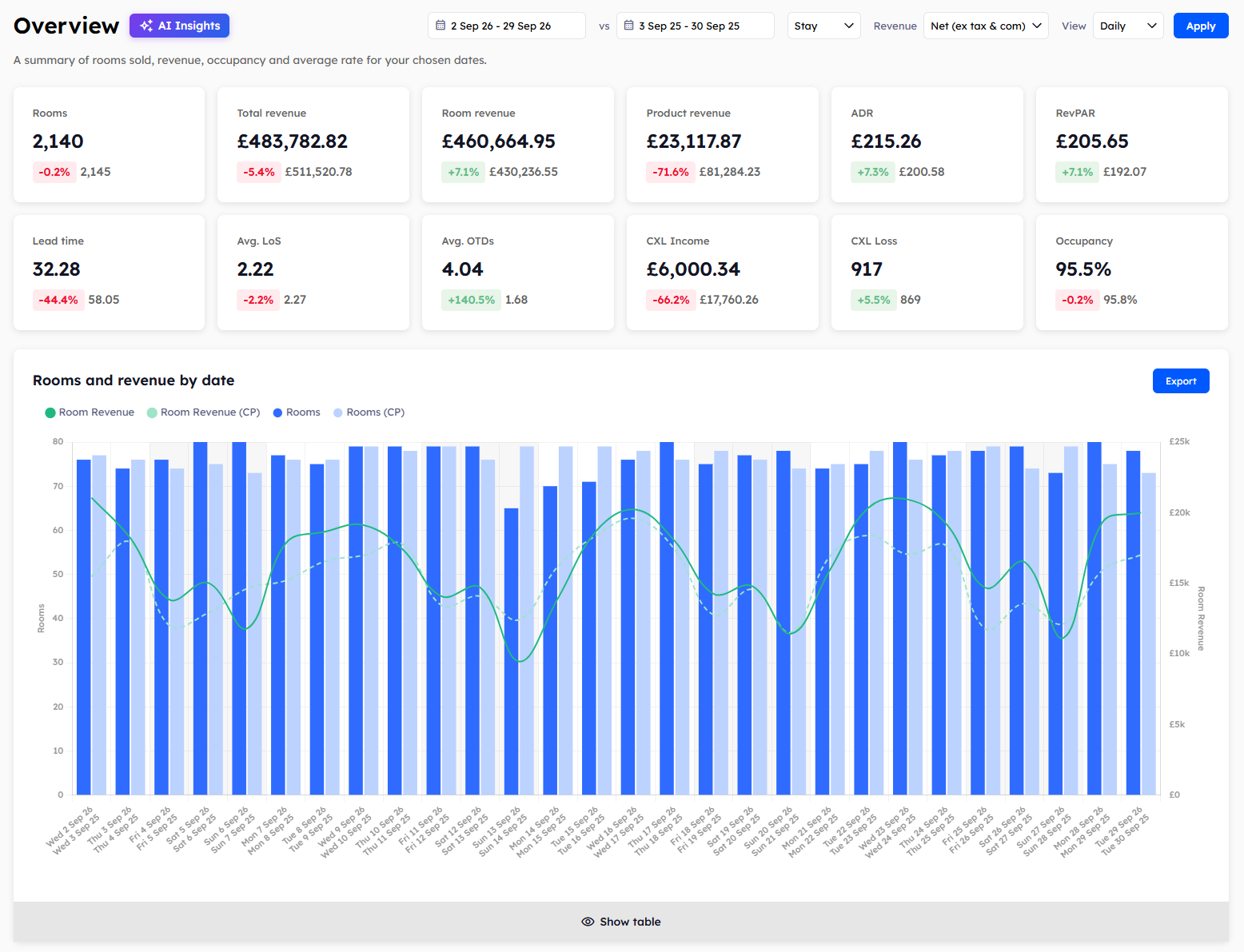
The summary cards
Twelve cards at the top of the page show the totals for your chosen dates.
Rooms: the number of room nights sold.
Total revenue: room revenue and product revenue added together.
Room revenue: revenue from rooms.
Product revenue: revenue from extras, such as parking and breakfast.
ADR: your average daily rate, which is room revenue divided by rooms sold.
RevPAR: revenue per available room, which is room revenue divided by the rooms you had available.
Lead time: the average number of days between a booking being made and the guest arriving. See Using the Lead time view.
Avg. LoS: the average number of nights guests stay. LoS is short for length of stay. See Using the Avg. LoS view.
Avg. OTDs: the average number of on-the-day bookings per day. OTD is short for on-the-day, which means the booking was made on the day of arrival. See Using the On-the-day view.
CXL Income: the money you kept from cancellations. CXL is short for cancellation. See Using the CXL Income view.
CXL Loss: the number of room nights you lost to cancellations that you couldn't charge for. This card counts room nights, not money, so it isn't confused with the revenue you did make. See Using the CXL Loss view.
Occupancy: the percentage of your available rooms that were sold.
RevPAR and Occupancy only appear when the Stay filter is selected. When Creation is selected, the CXL Income card shows None, because CXL Income is only worked out for stay dates.
Rooms reports
Four reports show rooms sold and room revenue, each split a different way.
Rooms and revenue by date: one bar for each day, week, or month, depending on the View filter.
Rooms and revenue by day of the week: Monday to Sunday. In the table, Count shows how many of each weekday fall within your dates. This report only appears when the View filter is set to Daily.
Rooms and revenue by requested room type: the room type the guest booked, which may not be the room they were given.
Rooms and revenue by segment: your segment groups, with the segments from your property management system (PMS) listed beneath each one. A segment is the category a booking is given in your PMS, such as corporate or leisure.
Products reports
Four more reports show the number of products sold and the revenue from them. They are split by date, by day of the week, by product type, and by segment.
To learn how to read the charts and tables, see Reading Explorer reports. To change the dates, see Using the Explorer search filters.
Was this helpful?
Still need help? Share an idea