Marking your direct sources
Explorer splits your sources into direct and third-party. Beacon treats every source as third-party until you tell it otherwise, so marking your direct sources is one of the first things to set up.
Direct sources are the ways guests book with you directly, such as your website, the phone, or walking in.
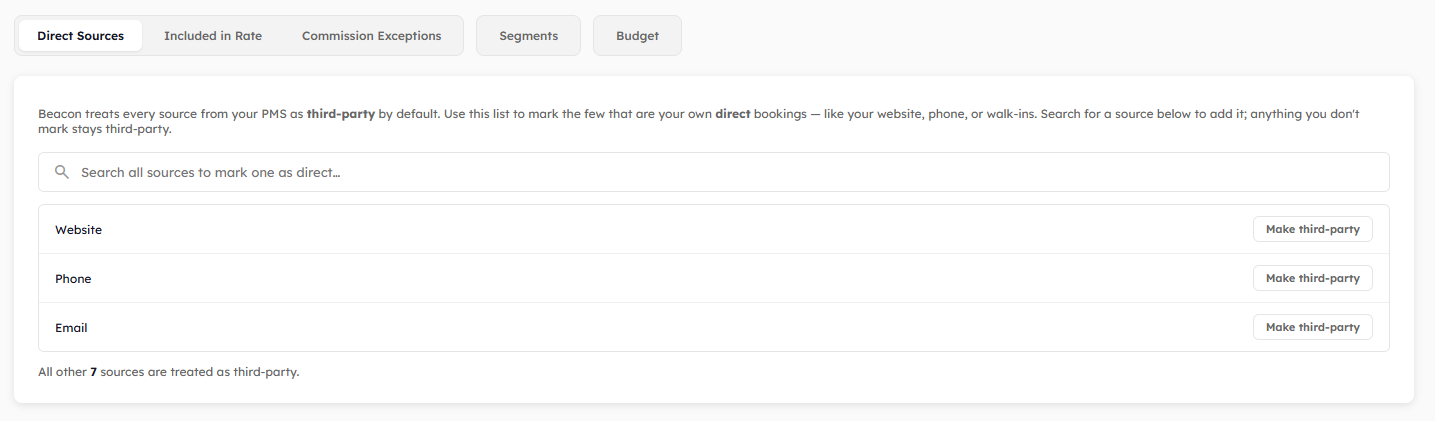
Finding the setting
Click your initials at the top right of the page and click Property. Click the Explorer tab, then click Direct Sources.
Marking a source as direct
Type the name of the source in the search box.
Find the source in the results.
Click Mark direct.
The search shows the first few matches. If you can't see the source you want, type more of its name.
The source now appears in the list under the search box, with your other direct sources.
Changing a source back
Find the source in the list under the search box and click Make third-party.
What this changes in Explorer
On the Sources page, your sources are grouped under Direct and 3rd Party, each with its own total. The daily overview also shows how each date's revenue is split between the two. See Using the Sources view.
Was this helpful?
Still need help? Share an idea