Using the On-the-day view
The On-the-day page shows the rooms and revenue from bookings made on the day the guest arrives. It counts every booking made on the day of arrival, whatever the source, including walk-ins.
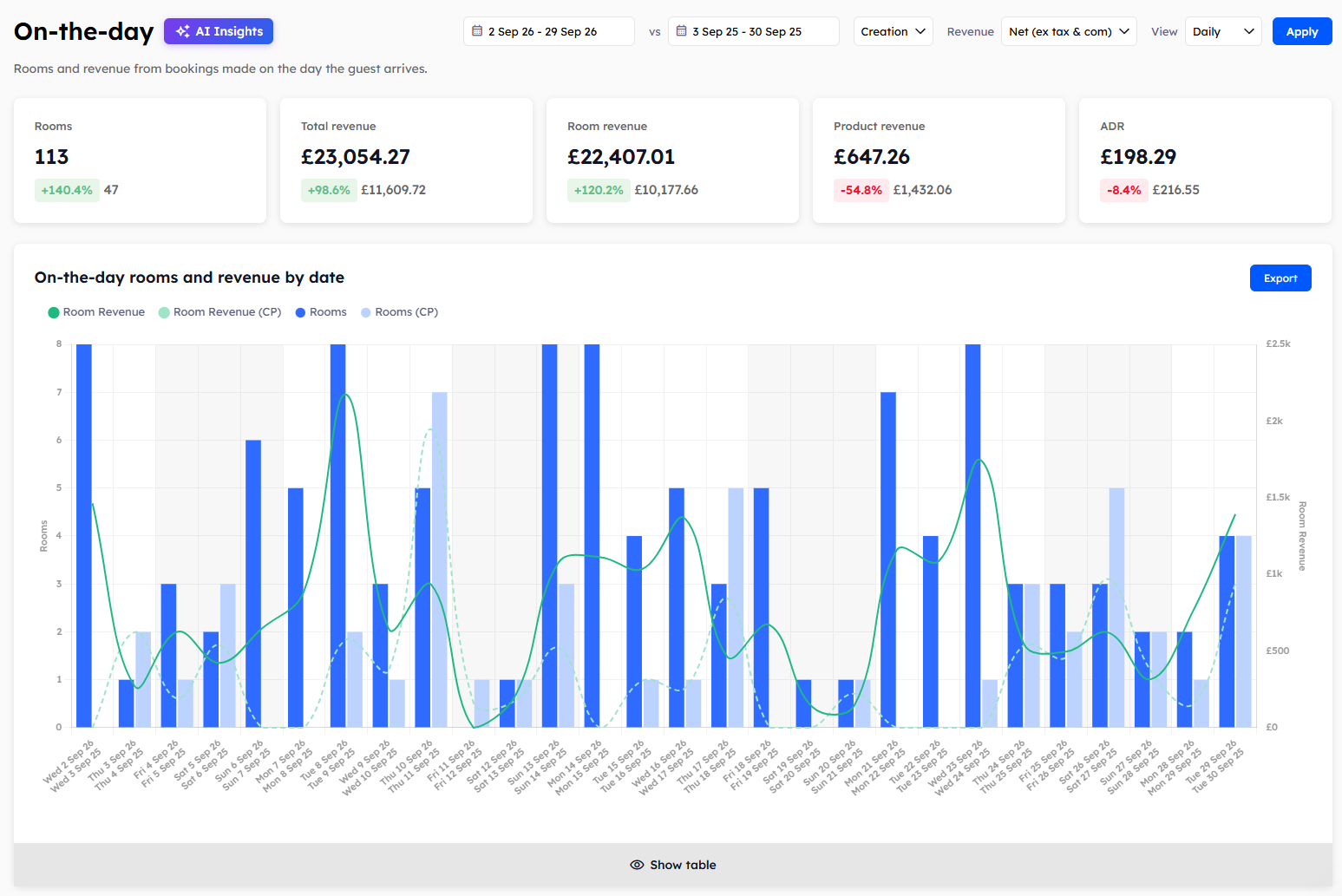
The summary cards
Five cards at the top of the page show the totals for your chosen dates. They only count on-the-day bookings.
Rooms: the number of rooms sold from on-the-day bookings.
Total revenue: room revenue and product revenue added together.
Room revenue: revenue from rooms.
Product revenue: revenue from extras, such as parking and breakfast.
ADR: your average daily rate for these bookings.
Compare the ADR here with the one on the Overview to see whether your last-minute bookings come in at a higher or lower rate than the rest.
On-the-day rooms reports
Four reports show on-the-day rooms and room revenue. They are split by date, by day of the week, by requested room type, and by segment.
Use the report by day of the week to see which days bring the most last-minute bookings. It only appears when the View filter is set to Daily.
On-the-day products reports
Four more reports show the products sold with on-the-day bookings and the revenue from them. They are split by date, by day of the week, by product type, and by segment.
The Avg. OTDs card on the Overview shows the average number of on-the-day bookings per day. OTD is short for on-the-day. To learn how to read the charts and tables, see Reading Explorer reports.
Was this helpful?
Still need help? Share an idea