Uploading your budget
Upload a budget so Explorer can show how each month is tracking against it. You upload one file for each year.
Your budget appears on the Budget page and in the Month vs budget card on the Daily briefing.
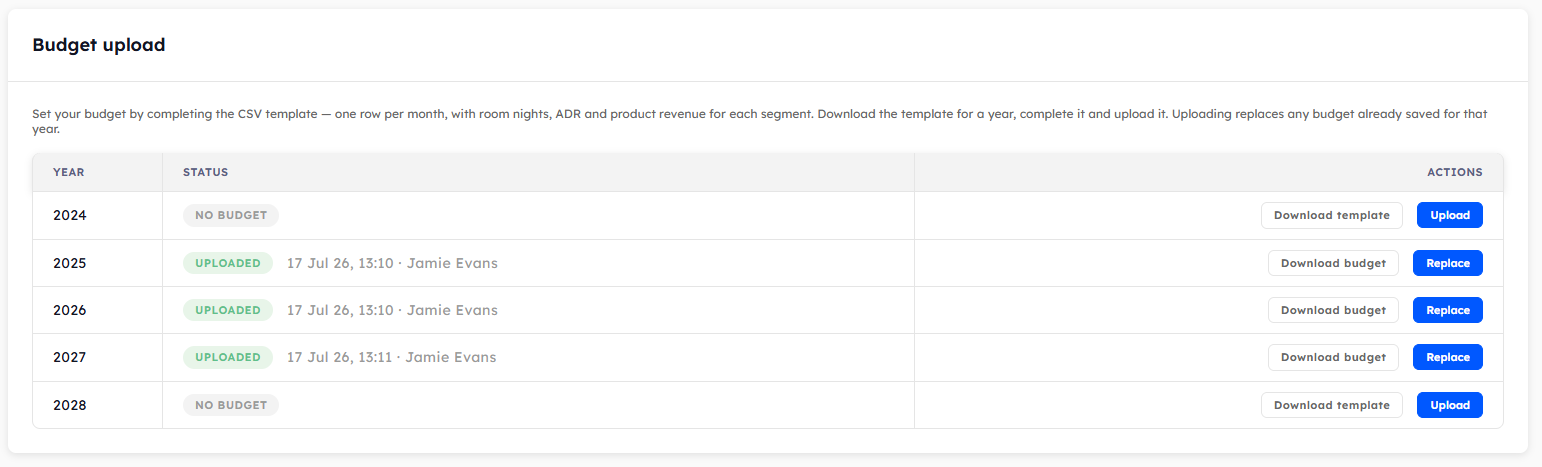
Finding the setting
Click your initials at the top right of the page and click Property. Click the Explorer tab, then click Budget. You can also click Manage budget on any report on the Budget page.
Before you start
The budget is set for each segment group, so set up your groups first. See Grouping your segments.
Uploading a budget
Find the year in the table and click Download template.
Open the file in a spreadsheet app. It has a row for each of your segment groups in each month.
Fill in the four columns for each row.
Room Nights: the number of room nights you expect to sell.
Room Revenue: the room revenue you expect, with VAT taken off.
Addons: the number of products you expect to sell.
Addon Revenue: the product revenue you expect, with VAT taken off.
Save the file as a CSV.
Click Upload next to the year, choose the file, and click Upload again.
Beacon checks the file and applies it straight away. If there's a problem with the file, Beacon tells you what it is so you can correct the file and upload it again.
The Status column changes to Uploaded, with the date and the name of the person who uploaded it.
Changing a budget
Click Download budget to download the template for a year that already has a budget. Check that the file shows the figures you expect, make your changes, then click Replace and upload the file in the same way.
Uploading replaces every figure saved for that year with what is in the file, so make sure each row holds the figure you want, not only the rows you've changed.
Was this helpful?
Still need help? Share an idea