Reading Explorer reports
Every Explorer page is built from the same parts, which are summary cards at the top and a set of reports underneath. This guide explains how to read them, so you only need to learn it once.
The summary cards
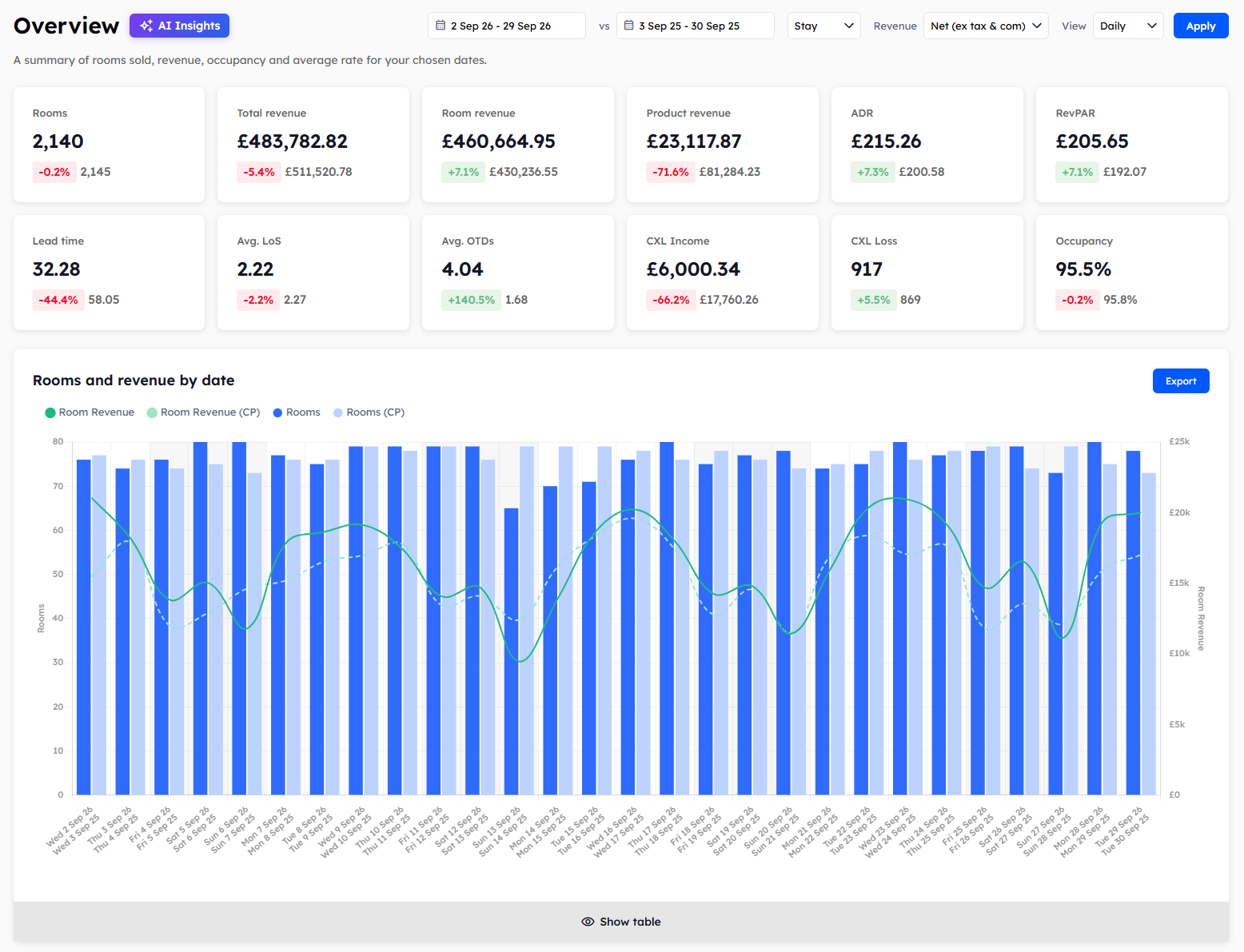
The cards at the top of a page show the totals for your chosen dates.
If you've chosen a comparison period, each card also shows a percentage and the figure for that period.
The charts
Each report starts with a chart. Most charts show two things at once, with bars measured on the left-hand scale and a line measured on the right-hand scale. The key above the chart tells you which is which. In Rooms and revenue by date, for example, the bars are rooms and the line is room revenue.
Hover over a bar or a point on the line to see the exact figures.
On charts by date in the daily view, Fridays, Saturdays, and Sundays have a grey background, so weekends are easy to spot.
If you've chosen a comparison period, the chart adds lighter bars and a dashed line for it. These are labelled (CP) in the key, which is short for comparison period.
The tables
Click Show table under a chart to see the figures behind it. Click Hide table to close it again.
If you've chosen a comparison period, each cell shows your figure first, with the comparison figure and the percentage change underneath.
In reports by date, the two periods are always lined up by day of the week, whichever comparison you chose. A Tuesday sits beside a Tuesday, so the two dates on a row may be a day or two apart. Because of this, a few rows at either end can show a dash where one period has no matching day.
In tables by segment or by source, the rows are grouped. The group is shown in bold with a total, and the individual segments or sources from your property management system (PMS) are listed beneath it. A group with only one segment in your dates shows as a single row. On segment reports, click Manage to change your groups. See Grouping your segments.
Exporting a report
Click Export at the top right of a report to download its table as a CSV file. You can open a CSV file in any spreadsheet app.
Looking at a single date
In tables by date, click the info icon next to a date to open the daily overview for that day. The icon only appears when the View filter is set to Daily. See Checking a single date with the daily overview.
Was this helpful?
Still need help? Share an idea