Using the Segments view
The Segments page shows which guest types are booking, and the rooms and revenue from each. It's the right place to see how your mix of business is changing.
A segment is the category a booking is given in your property management system (PMS), such as corporate or leisure.
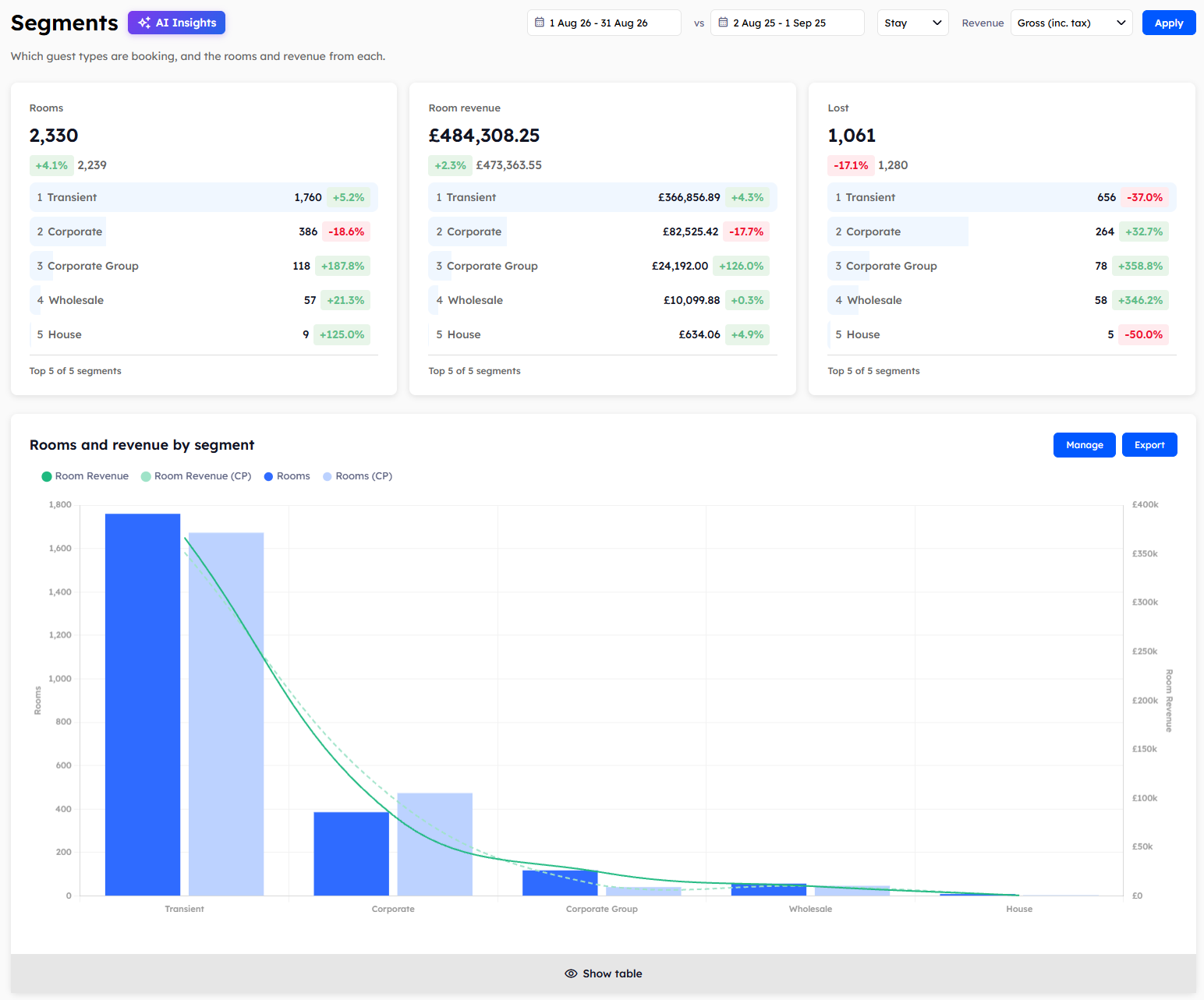
The summary cards
Three cards at the top of the page show the totals for your chosen dates.
Rooms: the number of room nights sold.
Room revenue: revenue from rooms.
Lost: the room nights you lost to cancellations that you couldn't charge for. This is the same figure as CXL Loss on the Overview. CXL is short for cancellation.
Under each total, the card lists up to five of your biggest segment groups for that figure. A line such as Top 5 of 10 segments tells you how many had a figure in your dates.
Rooms and revenue by segment
This report shows the rooms, room revenue, and ADR (average daily rate) for every segment.
The table starts with a Total row. Below it, each of your segment groups has its own total, with the segments from your PMS that belong to it listed beneath. A segment that isn't in a group appears under its own name. A group with only one segment in your dates also shows as a single row. A row called No segment holds bookings that have no segment in your PMS.
Room type and revenue by segment
This report takes each room type and splits it by segment group. Use it to see which guest types are booking which rooms.
Lost rooms and revenue by segment
This report shows the room nights and room revenue lost to cancellations that you couldn't charge for, split by segment. Use it to see which guest types cancel most. For more detail, see Using the CXL Loss view.
Changing your groups
Click Manage at the top right of any segment report to open your segment groups. A group lets several PMS segments report as one line. See Grouping your segments.
The Segments page has no View filter, because none of its reports are by date. To learn how to read the charts and tables, see Reading Explorer reports.
Was this helpful?
Still need help? Share an idea